
A well-managed IT device lifecycle is foundational to organizational success, yet many businesses overlook this critical operational requirement until problems emerge. For organizations expanding their workforce, whether through organic growth, remote work, or offshore staffing, understanding how to assess and manage device lifecycles directly impacts productivity, security, and the bottom line.
The Challenges of Outdated Devices
Many organizations operate with a mixed environment of aging and newer devices without a clear strategy for when and how to refresh equipment. This creates hidden operational, financial, and security costs that accumulate over time, which is sometimes referred to as technical debt.
Security Vulnerabilities
Outdated devices represent one of the most significant security risks to modern organizations. When manufacturers stop supporting hardware, they cease providing security patches and firmware updates. Approximately 60% of all data breaches originate from known but unpatched vulnerabilities. Older systems struggle to support modern encryption standards, multi-factor authentication, and hardware-based encryption protocols that are essential for protecting sensitive business data.
Cybercriminals actively target outdated equipment because they know it contains exploitable weaknesses that are easier to discover and leverage than vulnerabilities in current systems. A single compromised, outdated laptop can become an entry point for ransomware that spreads across your entire network, potentially locking your organization out of critical data.
Compliance and Regulatory Risks
For organizations operating in regulated industries, healthcare, finance, government contracting, or technology, outdated hardware creates compliance violations. Regulations like GDPR, ISO 27001, PCI DSS, and CMMC explicitly require secure data handling, which becomes impossible with unsupported equipment.
Non-compliance results in substantial fines, legal action, and reputational damage. In worst cases, organizations lose eligibility for government contracts or partnerships due to failing security certifications.
Operational and Productivity Costs
Older devices crash more frequently, leading to unexpected downtime that disrupts workflows and frustrates employees. These systems run slower, may not support modern applications, and require increasingly frequent repairs and component replacements. The cumulative effect is reduced employee productivity, higher support costs, and missed business opportunities.
Hidden Financial Burden
While replacing older equipment might seem expensive upfront, keeping aging devices in service typically costs more in the long run. The total cost of ownership (TCO), which includes purchase price, maintenance, repairs, energy consumption, downtime, and eventual replacement, almost always favors planned lifecycle refreshes over extending device life indefinitely.
Organizations that wait for devices to fail face emergency replacement scenarios with no budget planning, rushed procurement decisions, and business interruption costs that far exceed planned upgrades.
Visibility and Management Challenges
Without a complete inventory of device ages, warranty statuses, and lifecycle stages, IT teams lack the visibility needed to plan effectively. This leads to compliance audit failures, duplicate purchases, lost equipment, and inconsistent security standards across the organization.
Assessing When to Update the Device Lifecycle
Laptop Replacement Cycle
Manufacturers recommend replacing laptops every 3-4 years, with some organizations extending to 5 years depending on usage patterns and maintenance practices. Industry data shows that beyond 5 years, devices face significantly increased risks of slow performance, hardware failure, and security issues.
The actual replacement timeline depends on several factors:
| Factor Type | Description |
| Usage Intensity | Power users (developers, designers, data analysts) should receive new equipment every 3-4 years. General office workers can stretch to 4-5 years if devices are well-maintained. |
| Hardware Quality | Higher-end laptops with solid-state drives (SSDs) and robust build quality may function adequately slightly longer than budget-class devices. |
| Maintenance Practices | Well-maintained devices with regular software updates and proper hardware care last longer than neglected equipment. |
Desktop Computer
Desktops typically remain productive for 3-5 years under normal business conditions. They generally last longer than laptops because they experience less physical wear, but they still become outdated as software requirements advance.
Servers
Server hardware typically operates for 5-7 years, while server software often requires updates on a 4-6 year cycle. Critical infrastructure servers may warrant longer support periods.
Determining Replacement Cycles by Department or Business Case
Effective lifecycle management doesn’t mean replacing all devices on a single schedule. Instead, successful organizations implement a tiered approach where device refresh cycles align with department roles and business needs.
Administrative and General Office Roles
(HR, Finance, Administration, Customer Service)
- Recommended Cycle: 4-5 years
- Rationale: These roles typically use email, office productivity tools, and standard business applications with modest processing requirements.
- Refresh Strategy: When older devices reach end-of-life, they can often be refurbished and reassigned to this group before final retirement.
Project Management and Analytics
(Project Managers, Business Analysts, Operations Staff)
- Recommended Cycle: 3-4 years
- Rationale: These roles use moderately demanding software, including project management tools, databases, and visualization applications.
- Refresh Strategy: Devices from the power user tier cascade down to these roles when power users receive new equipment.
Technical and Creative Professionals
(Software Developers, Data Scientists, Graphic Designers, Engineers)
- Recommended Cycle: 3 years
- Rationale: These roles demand the latest processor performance, maximum RAM, and dedicated graphics capabilities. Underpowered equipment reduces their productivity significantly.
- Refresh Strategy: This tier receives the newest equipment. After 3 years, their devices move to the project management tier.
This cascading approach maximizes your technology investment. Rather than discarding fully functional equipment, you match device performance to actual job requirements, reducing waste while maintaining productivity across all levels.
Key Metrics in Assessing Replacement Timing
Beyond standard timeframes, organizations should monitor specific indicators that signal replacement is needed:
- Warranty Expiration: Once the hardware warranty expires (typically 3 years for business-class laptops), repair costs increase significantly. This often marks an appropriate replacement point.
- Operating System Support: When an operating system nears end-of-support from the manufacturer, devices running that OS should be refreshed. Windows 11 will eventually be superseded; planning for that transition ensures compliance before the deadline.
- Battery Health (for laptops): Battery degradation below 80% capacity indicates the device is aging and approaching end-of-life.
- Performance Benchmarks: Monitor device performance metrics. When systems cannot comfortably run required software or applications, replacement is warranted.
- Repair Frequency: When repair costs exceed 50% of replacement cost in any 12-month period, the device should be retired.
- Security Patch Status: Devices that can no longer receive the latest security patches should be taken out of production immediately.
Technical Specifications and Why They Matter
The Specification-to-Function Relationship
Choosing the correct technical specifications isn’t merely about “getting a good device“—it’s about ensuring each employee has the tools to perform their specific job effectively while avoiding unnecessary overspend on capabilities they don’t need.
Oversupplying specifications wastes budget and creates e-waste. Undersupplying creates productivity problems, employee frustration, and hidden costs from workarounds and support requests.
Administrative and General Roles
| Component | Specification | Description |
| Processor | Intel Core i5 or AMD Ryzen 5 (4-6 cores, 2.5-3.0 GHz) | Sufficient for email, office productivity, and standard business applications |
| Ram | at least 16 Gb | Handles typical multitasking with office software |
| Storage | at least 256 Gb SSD | Fast boot and application loading; adequate for standard business data |
| Display | 13 – 15 inches | Sufficient for office work; portable if remote work required |
| Graphics | Integrated GPU | Adequate for document editing and standard applications |
| Operating Systems | Windows 11 Pro | Professional version supports domain integration and group policies |
Project Management and Analytical Roles
| Component | Specification | Description |
| Processor | Intel Core i7 or AMD Ryzen 7 (6-8 cores, 3.0-3.4 GHz) | Handles moderately demanding software and larger datasets |
| Ram | at least 16 Gb | Supports multiple demanding applications simultaneously; handles larger datasets |
| Storage | at least 512 Gb SSD | Accomdates project files, databases, and business analytics software |
| Display | at least 14 inches | Larger screen helps with spreadsheet analysis and data visualization |
| Graphics | Integrated GPU, or entry-level dedicated GPU (2-4 Gb VRAM) | Supports visualization tools and improves dashboard performance |
| Operating System | Windows 11 Pro | Professional features for larger file handling and network management |
Technical and Creative Professionals
| Component | Specification | Description |
| Processor | Intel Core i7/i9 or AMD Ryzen 7/9 (8-12 cores, 3.2-2.6+ Ghz) | Manages compilation, rendering, and complex data processing |
| Ram | 32 Gb Recommended, at least 16 Gb | Essential for development environments, virtual machines, and large datasets |
| Storage | at least 512 Gb SSD | Accommodates development tools, databases, and project repositories |
| Display | at least 14 inches, with the option to extend up to 2-3 external displays | Supports detailed design work and code editing; consider dual monitor setup |
| Graphics | Dedicated GPU (at least 4 Gb BRAM) | Critical for rendering, 3D work, machine learning operations, and CAD |
| Operating System | Windows 11 Pro | Professional edition supports all development tools; may need Linux dual-boot capability |
Why Technical Specifications Matter
Productivity and Performance
Underpowered devices create bottlenecks. A developer waiting for code compilation to complete loses focus and productivity. A financial analyst unable to process large spreadsheets must use workarounds. These delays compound into significant lost productivity over time.
Employee Satisfaction and Retention
Employees with tools that match their job requirements are more satisfied and engaged. Conversely, staff struggling with inadequate equipment express frustration and may seek employment elsewhere. In competitive talent markets, equipping employees properly becomes a retention strategy.
Security Compliance
Certain specifications directly impact security posture. Devices with trusted platform modules (TPM), hardware-based encryption, and UEFI secure boot features provide stronger security foundations than older designs lacking these components.
Cost Efficiency
Matching specifications to actual needs prevents waste. An administrative employee doesn’t need a $3,000 workstation; neither should a software developer attempt to work on a budget device. Right-sizing specifications maximizes your IT budget’s impact.
Software Compatibility
Modern business applications have minimum requirements. Undersized devices may not run the required software or may run it slowly. When planning replacements, validate that new devices meet the minimum (ideally, recommended) specifications for the software your organization actually uses.
Building a Complete Device Lifecycle Process
The device lifecycle describes how an organization manages its laptops and desktops from initial planning through secure retirement to get the most value and minimize risk throughout the entire lifespan of each device.
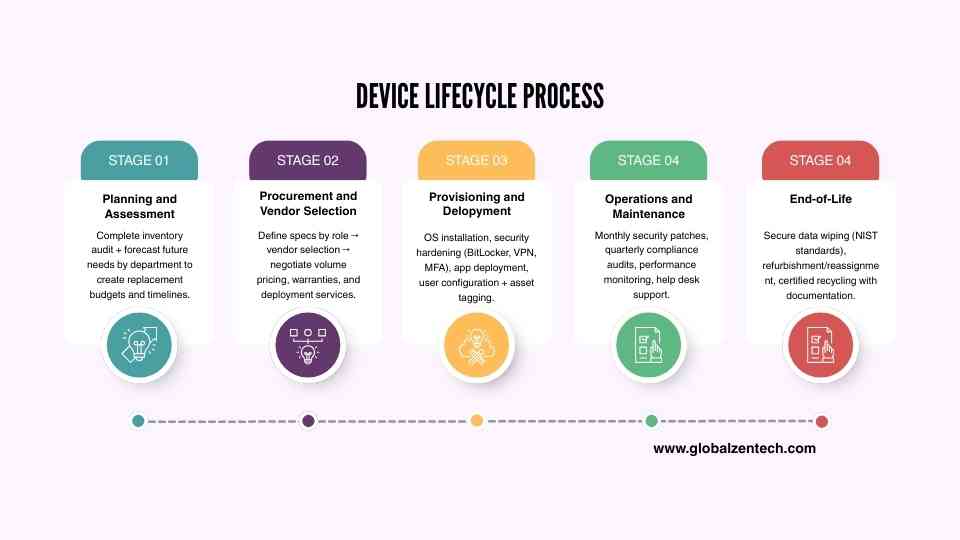
It’s a structured approach that brings clarity, security, and efficiency to how technology is used across teams.
Stage 1: Planning and Assessment
Effective lifecycle management begins with understanding your current state and future needs.
| Process | Description |
| Current State Assessment | Conduct a complete audit of all existing devices. For each laptop and PC, document: 1. Device model, manufacturer, and serial number 2. Operating system and version 3. Hardware specifications (processor, RAM, storage) 4. Date of manufacture or purchase 5. Warranty status and expiration date 6. Current user or department 7. Last major service or repair 8. Backup/redundancy arrangements Use this inventory to identify which devices are approaching end-of-life and which are still productive. |
| Forecasting Future Needs | Project device requirements for the coming 2-3 years based on: 1. Expected headcount growth (new hires, expansions) 2. Planned department changes or restructuring 3. New software implementations requiring more capable hardware 4. Retirement of aging devices 5. Remote work or distributed team scaling |
| Budget Planning | Calculate annual replacement budgets. If you have 100 devices with a 4-year lifecycle, plan to replace approximately 25 devices annually. This distributes costs across fiscal years and prevents budget surprises. Consider that laptops cost more per unit than desktops, and technical professional devices cost more than general office equipment. Factor in total cost of ownership, not just purchase price: 1. Hardware purchase 2. Operating system licenses 3. Deployment and setup costs 4. Warranty and support programs 5. Software licenses specific to new devices 6. Data migration costs 7. Training on new systems (if applicable) 8. Recycling or refurbishment of retired devices |
Stage 2: Procurement and Vendor Selection
| Process | Description |
| Define Specifications | Based on department needs and budget, specify which hardware configurations you need. Create standard configurations: 1. Standard Administrative Laptop: Core i5, 16GB RAM, 256GB SSD, $800-1,000 2. Standard Professional Laptop: Core i7, 16GB RAM, 512GB SSD, $1,200-1,500 3. Standard Workstation: Core i9, 32GB RAM, 512GB SSD, Dedicated GPU, $2,000-2,500 |
| Vendor Selection | Evaluate vendors based on: 1. Reputation for quality and reliability 2. Warranty offerings and support response times 3. Volume discounts for large orders 4. Configuration flexibility 5. Compatibility with your IT management tools 6. Environmental responsibility and recycling programs 7. Support for your geographic region (important for organizations with offshore teams) |
| Request Quotes and Negotiate | Issue formal Requests for Quote (RFQ) or Requests for Proposal (RFP) to multiple vendors. Include specific requirements, timeline expectations, and quantity discounts. Negotiate not just unit pricing but also: 1. Extended warranty options 2. Free or reduced-cost upgrade services 3. Device trade-in or buyback programs 4. Free imaging and configuration services 5. Flexible delivery schedules |
Stage 3: Provisioning and Deployment
| Process | Description |
| Pre-Deployment Configuration | Before devices reach users, they must be properly configured: Operating System and Updates 1. Install the latest version of Windows 11 Pro (or appropriate OS) 2. Apply all current security patches and updates 3. Configure automatic update scheduling 4. Set up system restore points Security Configuration 1. Enable encryption (BitLocker for Windows) 2. Configure and enable Windows Defender 3. Set up Windows Firewall with appropriate rules 4. Install mobile device management (MDM) agent if applicable 5. Configure VPN access for remote workers 6. Implement multi-factor authentication (MFA) settings 7. Configure automatic screen lock timing Software Installation 1. Install required business applications 2. Configure cloud storage clients (OneDrive, SharePoint, etc.) 3. Install industry-specific software 4. Set up productivity tools (Microsoft 365, email clients, etc.) 5. Install monitoring and management tools User Customization 1. Create user accounts and configure permissions 2. Set default printers and network shares 3. Personalize email and calendar settings 4. Configure department-specific shortcuts and settings Asset Tracking and Documentation Assign unique asset tags and serial numbers Document configuration details in your IT asset management system Record allocated user, department, and location Set depreciation schedules for accounting purposes |
| Centralized vs Decentralized Deployment | For small organizations, centralized deployment (configuring all devices in one location) works well. For distributed or offshore teams, consider: 1. Regional Configuration Centers: Setting up staging facilities in major geographic regions 2. Vendor Staging Services: Having the vendor configure devices before delivery 3. Local IT Support: Training local IT contacts to configure devices upon arrival This approach reduces shipping time and local delivery delays while maintaining security standards. |
| Operation and Maintenance | Ongoing device management is where many organizations fail. Devices don’t manage themselves; active maintenance preserves security, performance, and productivity. Security and Compliance 1. Monthly Security Patches: Ensure all devices receive Microsoft monthly security updates 2. Quarterly Full Audits: Scan devices for unpatched software, unauthorized applications, and configuration drift 3. Compliance Monitoring: Verify devices meet organizational security standards 4. Mobile Device Management (MDM): Use MDM solutions to enforce policies remotely and monitor compliance status Performance Monitoring 1. Health Checks: Monthly review of device performance metrics (disk space, memory usage, CPU performance) 2. Aging Equipment Watch: Flag devices reaching replacement age 3. Battery Health Tracking (laptops): Monitor battery degradation 4. Disk Space Management: Implement automated disk cleanup or archive processes User Support and Training 1. Onboarding: New users should receive training on security policies, backup procedures, and best practices 2. Help Desk Support: Maintain responsive support for device issues to minimize downtime 3. Software Updates: Coordinate major OS upgrades to minimize disruption 4. Data Backup: Ensure users understand backup requirements and processes Preventive Maintenance 1. Regular Backups: Implement automated backup to protect against data loss 2. Disk Defragmentation (if mechanical drives used): Though less common with SSDs, optimize storage performance 3. Temperature Management: Ensure proper device cooling and ventilation 4. Physical Care Training: Educate users about proper handling and cable management |
Stage 4: Operations and Maintenance
| Process | Description |
| Security and Compliance | 1. Monthly Security Patches: Ensure all devices receive Microsoft monthly security updates 2. Quarterly Full Audits: Scan devices for unpatched software, unauthorized applications, and configuration drift 3. Compliance Monitoring: Verify devices meet organizational security standards 4. Mobile Device Management (MDM): Use MDM solutions to enforce policies remotely and monitor compliance status |
| Performance Monitoring | 1. Health Checks: Monthly review of device performance metrics (disk space, memory usage, CPU performance) 2. Aging Equipment Watch: Flag devices reaching replacement age 3. Battery Health Tracking (laptops): Monitor battery degradation 4. Disk Space Management: Implement automated disk cleanup or archive processes |
| User Support and Training | 1. Onboarding: New users should receive training on security policies, backup procedures, and best practices 2. Help Desk Support: Maintain responsive support for device issues to minimize downtime 3. Software Updates: Coordinate major OS upgrades to minimize disruption 4. Data Backup: Ensure users understand backup requirements and processes |
| Preventive Maintenance | 1. Regular Backups: Implement automated backup to protect against data loss 2. Disk Defragmentation (if mechanical drives used): Though less common with SSDs, optimize storage performance 3. Temperature Management: Ensure proper device cooling and ventilation 4. Physical Care Training: Educate users about proper handling and cable management |
Stage 5: End-of-Life and Disposal
When devices reach end-of-life, they require careful management to protect data security and comply with environmental regulations.
| Process | Description |
| End-of-Life Criteria | Devices should be decommissioned when they meet any of these conditions: 1. Reach the end of planned lifecycle (3-5 years) 2. Are no longer supported by the manufacturer 3. Cannot efficiently run required software 4. Require repairs costing more than 50% of 5. replacement Have experienced multiple hardware failures 6. Fail compliance or security audits |
| Data Removal | Before any device leaves organizational control, all data must be securely removed: Data Wiping Standards 1. Use NIST-approved data wiping methods (typically 3-pass overwrite or higher) 2. Document the wiping process with certificates of data destruction 3. Verify that all drives and partitions are completely wiped 4. Account for recovery partitions and hidden drives 5. Use specialized data destruction software, not simple file deletion Special Considerations 1. Encrypted drives may require key destruction in addition to data wiping 2. Devices with failing drives should be physically destroyed rather than wiped 3. Highly sensitive devices (containing government contract data, healthcare information, etc.) may require physical destruction |
| Refurbishment or Recycling | After data removal, devices can follow several paths: Reuse and Refurbishment 1. Fully functional devices can be wiped and reassigned to non-critical roles 2. Refurbishment may include cosmetic restoration or component replacement 3. Creates environmental value and extends device utility 4. Reduces procurement costs for future needs Responsible Recycling 1. Partner with certified e-waste recyclers that properly handle hazardous materials 2. Ensure recyclers meet environmental standards and certifications 3. Obtain certificates of recycling for compliance documentation 4. Recover material value when possible Donation 1. Some organizations donate fully functional devices to educational institutions or nonprofits 2. Requires data certification and often device refurbishment 3. Provides tax benefits and community goodwill |
| Documentation and Compliance | Maintain complete records of all decommissioning activities: 1. Device serial numbers and asset tags 2. Data destruction method and date 3. Responsible parties and authorizations 4. Disposal path (recycling, refurbishment, donation) 5. Certificates and compliance documentation These records support audit requirements, tax documentation, and compliance verification. |
How Global ZenTech’s EOR Services Support Device Lifecycle Management
For organizations managing distributed or offshore workforces, device lifecycle management becomes more complex. Global ZenTech’s Employer of Record (EOR) services address these challenges as a comprehensive solution.
The Challenge of Managing Devices Across Borders
When your organization expands to the Philippines or other regions, you face unique device management challenges:
Regulatory and Compliance Complexity
- Different countries have different data protection regulations (Philippines Data Privacy Act, GDPR equivalents, etc.)
- Device acquisition, use, and disposal must comply with local labor laws
- Employee agreements must address device ownership, usage, and return policies
- Tax implications vary by location and employment classification
Logistics and Distribution
- Procuring devices in local markets vs. importing from headquarters
- Managing warranty and support in different regions with different vendors
- Coordinating device returns and replacements across time zones
- Handling local logistics costs and customs considerations
Employee Management Complexity
- Devices are technically company property, but must follow local employment guidelines
- Device allocation decisions intersect with employment contracts
- Return of devices upon termination requires documented procedures
- Remote devices are harder to physically monitor and maintain
Security and Access
- Offshore devices must maintain the same security standards as headquarters
- Managing encryption, VPN access, and authentication across regions
- Ensuring compliance with data residency requirements
- Monitoring device health and patch status across distributed teams
Global ZenTech’s EOR services handle the employment relationship in the Philippines, which includes responsibility for equipment provisioning and management as part of comprehensive workforce solutions. This means:
- Device allocation decisions are coordinated with employment agreements and roles
- Technical specifications match job requirements defined in employment contracts
- Device assignment is tracked alongside employee records for audit purposes
- End-of-employment device returns are coordinated with offboarding procedures
For organizations with distributed or offshore workforces, managing this complexity alone creates a burden. By partnering with Global ZenTech’s EOR services, you gain integrated workforce and device management that ensures compliance, security, and cost-effectiveness across all your teams, wherever they’re located in the Philippines.


 Global ZenTech