
When startups think about building a remote team in the Philippines, the focus naturally falls on hiring the right people. What gets underestimated, consistently, is what happens after the hire. A talented software developer working on a sluggish laptop without a proper display or a consumer headset that picks up every background sound isn’t performing at their potential. Neither is a customer success manager trying to hold a professional client call through a laptop’s built-in microphone while sitting at a kitchen table.
Equipping a remote offshore team isn’t a logistics box to check. It’s a strategic investment that directly determines how well your people perform, how reliably they communicate, and how long they stay. This guide is designed to give startup founders and operations managers a clear framework for thinking through remote equipment requirements, from building a role-based device matrix to understanding the specific productivity case for enterprise headsets and external displays, and navigating the realities of procuring and managing hardware from thousands of kilometers away.
Building Your Equipment Requirements: Assessing by Role and Workload
The foundation of any effective remote equipment strategy is a requirements assessment tied to actual job functions. The most common mistake in early-stage startup procurement is treating equipment as a uniform cost to minimize across the board. In practice, the hardware requirements of a graphic designer, a software developer, a customer support agent, and a finance analyst are meaningfully different, and a device matrix that doesn’t reflect those differences will either overspend in the wrong places or underequip the roles that need more.
Mapping Roles to Workload Tiers
Start by grouping your team into broad workload tiers. Not every organization will map perfectly to these categories, but they provide a practical starting point. The workload in this case is not the actual workload of the employee but the expected workload the equipment is needed to handle:
| Workload Tiers | Description |
| Light to Moderate Workload | Workloads that primarily work within browser-based tools, email clients, communication platforms, and productivity suites. Their needs favor reliability, battery life, comfortable keyboards, and adequate display quality for extended screen time. |
| Moderate to Heavy Workload | Workloads that span across a broader set of tools and often run multiple applications simultaneously. These roles benefit from mid-range processors, 16GB of RAM or more, and displays with strong color accuracy. |
| Heavy and Technical Workload | Workloads that demand high computational power and sustained performance due to complex, resource-intensive tasks. These include software engineering (large codebases, containerization), data engineering, video editing, 3D rendering, AI/ML workloads, and other high-performance computing scenarios. These roles require high-end processors, 32GB+ RAM, dedicated GPUs (when applicable), high-speed SSDs, and advanced thermal performance. Multi-monitor setups, high-resolution displays, and specialized peripherals are often necessary to support efficiency and precision. These workloads place significant demand on system resources and require hardware that can handle sustained processing without performance degradation. |
Needs Assessment According to Job Role
Before ordering equipment, define what each role actually needs to succeed. A one-size-fits-all approach leads to wasted resources and inefficiencies. A structured assessment helps you balance performance, cost, and usability.
- Understand the Work Scope
- Development & Engineering: Developers and engineers rely on powerful machines with sufficient RAM, CPU cores, SSD storage, and reliable peripherals.
- Design & Creative Roles: Designers benefit from color-accurate external displays and high-performance graphics capability.
- Customer Support & Operations: These roles prioritize communication tools and reliability — headsets, webcams, and ergonomics matter.
- Communicate Expectations Early
- Work with team leads to map out which tasks require high performance versus standard configurations.
- Consider future growth and whether equipment can be standardized across roles.
- Balance Portability and Power
- Lightweight laptops are appealing for mobility, but ensure they’re capable of handling the software and workload required.
Building a Requirements Checklist for Each Role
Once you’ve mapped roles to workload tiers, document the following for each:
- Primary applications and software stack
- Typical number of active applications and browser tabs simultaneously
- Video call frequency and client-facing communication volume
- Need for external peripherals such as multiple monitors, drawing tablets, or specialized input devices
- Mobility requirements: Is this a fixed desk setup or does the employee move between locations?
- Security requirements: Do they handle sensitive client data, payment information, or regulated content?
This requirements profile, repeated for each role or role cluster, becomes the specification basis for your device matrix and informs every procurement decision downstream.
The Complete Remote Work Equipment Ecosystem
Laptops dominate the conversation in remote equipment discussions, but a laptop is only one component of a productive remote workstation. For offshore teams working from home offices or co-working spaces, the supporting equipment around the laptop often has a greater day-to-day impact on comfort, efficiency, and communication quality than the machine itself.
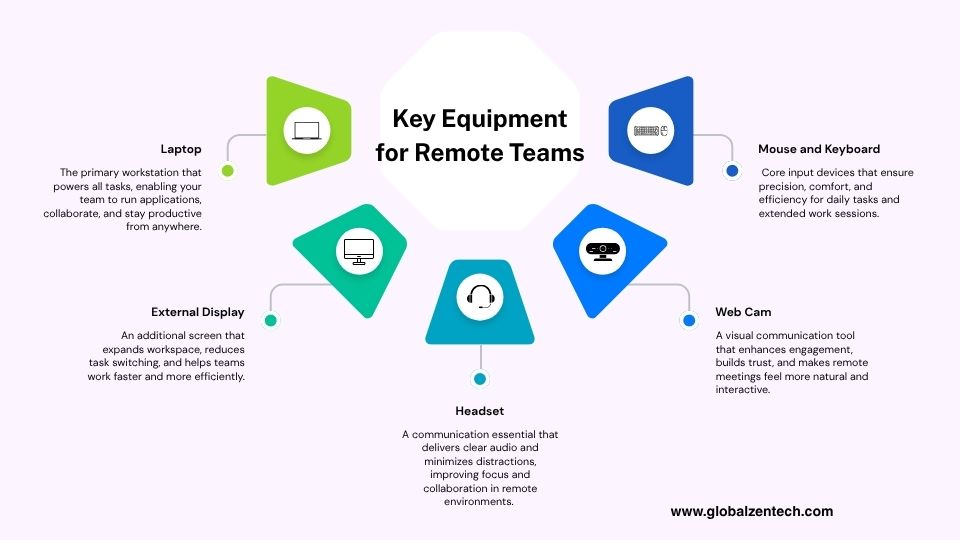
When building your equipment strategy, consider the full stack of devices your team actually needs to work effectively:
- Laptops: The primary compute device and the most significant capital expense in your equipment budget. Role-based selection is essential, not everyone needs the same machine.
- External Displays: One of the highest-return investments you can make for knowledge workers, developers, and creative professionals. A well-specified second screen can meaningfully increase how much work an employee can accomplish in a session without constant context switching.
- Enterprise Headsets: The communication interface for your remote team. For roles with high call volume, the headset is the difference between clear, professional communication and the kind of muffled, distorted audio that wears on every participant across a long day.
- Keyboards and Mice: Often treated as afterthoughts, but for employees typing eight hours a day, ergonomic keyboard and mouse choices reduce fatigue and contribute directly to typing accuracy and long-term health.
- Docking Stations and USB Hubs: Critical for setups with external displays, wired peripherals, and Ethernet connectivity. A quality dock simplifies the transition between mobile and desk modes without cable complexity.
- Webcams: The built-in cameras on most laptops produce adequate but inconsistent video quality. For client-facing roles and senior professionals on frequent stakeholder calls, an HD or 4K external webcam delivers noticeably better image quality and wider field of view.
- Laptop Stands and Monitor Arms: Ergonomically important for neck and posture health during long working sessions. A laptop stand paired with an external keyboard moves the screen to eye level and reduces strain in fixed desk setups.
- Ergonomic Seating: Frequently overlooked in remote equipment discussions, but the chair your employee sits in for eight hours a day has a direct impact on physical health, comfort, and sustained focus.
- UPS and Surge Protectors: Especially important in the Philippines, where intermittent power supply and brownouts are a real concern in residential and some co-working settings. An uninterruptible power supply provides enough battery backup to save work and shut down safely, protecting both the device and the data on it.
Remote Equipment Matrix: Recommendations by Role and Cost
The matrix below provides a role-based guide to equipment recommendations and estimated cost ranges in Philippine Peso. This is intended as a planning framework rather than a definitive procurement spec, exact pricing will vary by vendor, configuration, and procurement timing.
| Equipment | Admin/Support | Knowlege Worker | Developer/Analyst | Creative/ Design | Exec/ Senion | Est. Cost Range |
| Business Laptop | Mid-Range | Mid-range | Mid-High range | Mid-High Range | Mid-High Range | ₱45,000 – ₱120,000+ |
| External Display (24″ -27″) | Optional | Recommended | Essential | Essential (Wide Color Gamut) | Recommended | ₱25,000 – ₱50,000 |
| Enterprise Headset (USB/Wireless) | Essential | Essential | Essential | Essential | Essential | ₱5,000 – ₱25,000 |
| Ergonomic Keyboard | Optional | Optional | Optional | Essential | Optional | ₱1,500 – ₱6,000 |
| Ergonomic Mouse/ Trackpad | Essential | Essential | Essential | Essential | Essential | ₱800 – ₱4,000 |
| Docking Station | Optional | Optional | Recommended | Essential | Essential | ₱2,500 – ₱12,000 |
| Dedicated Web Cam | Optional | Optional | Recommended | Recommended | Essential | ₱1,500 – ₱8,000 |
Legend: Essential = a baseline requirement for the role; Recommended = meaningfully improves productivity and should be included in standard deployment; Optional = valuable in some configurations but not universally required.
Why Enterprise-Grade Headsets Are a Productivity Investment
The headset might be the most undervalued line item in a remote equipment budget. When startups look for places to reduce procurement costs, peripherals are often the first target. A consumer headset from a general electronics store at a fraction of the price of a business-grade device seems like a sensible economy. It rarely is.
Audio Quality and Its Effect on Communication Efficiency
Every moment your team spends on a video call, a client consultation, a standup, or a support interaction is a moment where audio quality is either facilitating clear communication or creating friction. Poor-quality microphones pick up background noise from fans, traffic, other household members, and ambient room echo. The result is audio that requires listeners to work harder to understand the speaker — a cognitive load that compounds across every call in a workday.
Enterprise-grade headsets from manufacturers like Jabra, Poly (formerly Plantronics), and EPOS are engineered specifically to address this problem. Their microphone arrays use digital signal processing and AI-based noise suppression to isolate the speaker’s voice and reduce background interference before the audio ever reaches the call. This technology difference is perceptible on the receiving end, regardless of the listener’s equipment, and it matters most in the kinds of meetings where misunderstandings have real consequences.
Active Noise Cancellation and Focus
The listening side of communication is equally important. Remote workers in home office environments deal with a constant stream of ambient distractions, traffic, construction, family activity, and neighbourhood noise. Enterprise headsets with active noise cancellation (ANC) create an acoustic environment conducive to sustained focus regardless of what is happening in the physical space around the employee.
This matters not just during calls, but during deep work periods. An analyst reviewing complex data, a developer debugging code, or a writer working on a proposal all benefit from the ability to maintain concentration without physical isolation from their environment. High-quality ANC creates the conditions for sustained focus without requiring a dedicated, acoustically isolated workspace.
Comfort and All-Day Wearability
Consumer headsets are designed for occasional use. Enterprise headsets are engineered for eight-plus hours of continuous wear. Cushioning materials, headband pressure distribution, weight balance, and ear cup sizing all affect how a headset feels after two hours, four hours, and at the end of a full day. An employee who removes their headset mid-call because it’s uncomfortable, or who accumulates physical fatigue across a headset-heavy workday, is experiencing a productivity cost that doesn’t appear on any individual support ticket but accumulates significantly over time.
Platform Certification
Enterprise headsets from leading manufacturers carry platform certification for Microsoft Teams, Zoom, and Google Meet. This means the device controls, call management buttons, and audio tuning have been specifically optimized and tested for those platforms. Answering calls, adjusting volume, muting, and switching between devices all work seamlessly without requiring software configuration or workarounds. For organizations managing a remote fleet at scale, certified hardware reduces support overhead and ensures a consistent experience across the team.
The following table outlines how headset investment scales across role tiers:
| Tier | Example | Key Features | Best For | Est. Cost |
| Consumer/Budget | Generic USB headsets | Stereo audio, basic mic | Generic headsets are generally not recommended | ₱500 – ₱2,000 |
| Business Starter | Jabra Evolve2 30, Poly Blackwire 3200 | Noise-cancelling Mic, call controls, Teams/ Zoom Certified | Support, admin, backoffice, non-client facing roles | ₱3,000 – ₱6,000 |
| Professional | Jabra Evolve 2 65, Poly Voyager Focus 2 | ANC, wireless, Bluetooth, all-day comfort, AI- noise cancellation | Knowledge workers, team leads, account managers | ₱8,000 – ₱15,000 |
| Executive/Premium | Jabra Evolve 2 85, Poly Voyager Surround 80 | Multi-device pairing, premium audio, leading ANC | Executives, client-facing senior roles | ₱15,000 – ₱25,000+ |
The Productivity Case of External Displays
For most knowledge workers, a laptop screen is insufficient as a primary work environment for an eight-hour day. It’s not simply a matter of screen real estate, though that matters. It’s about reducing the cognitive load of context switching, improving the quality of visual work, and enabling the kind of multi-panel workflows that underpin modern knowledge work.
Screen Real Estate and Multitasking
Modern work rarely happens in a single application. A project manager juggling a project tracker, email, a chat client, and a video call simultaneously is managing a constant context-switching overhead when confined to a single laptop screen. An external display allows key applications to remain persistently visible rather than requiring the employee to cycle through minimized windows. For roles with high multitasking demands — developers working across an IDE, terminal, and documentation simultaneously, or analysts cross-referencing multiple data sources — the productivity benefit of a second screen is substantive and immediate.
Display Quality and Eye Fatigue
The quality of a display matters independently of its size. Displays with low brightness force the eye to strain in bright environments; low-resolution panels make small text harder to read; poor panel uniformity creates distracting hotspots across the screen. All of these factors contribute to visual fatigue over long working sessions, which manifests as reduced concentration, slower reading speed, and physical discomfort.
External monitors from business-oriented manufacturers such as Dell, LG, and BenQ offer consistently better panel quality than the displays built into mid-range laptops. Investing in a QHD or 4K IPS display with adequate brightness and anti-glare coating for knowledge workers is a decision that improves the quality of every working hour, not just the hours spent on creative tasks.
Color Accuracy for Creative and Marketing Roles
For graphic designers, video editors, content creators, and marketing professionals who review brand assets, display color accuracy is a workflow requirement. A display that misrepresents colors — rendering them as more saturated, warmer, or cooler than they actually are — causes the employee to make content decisions based on incorrect visual information. Brand assets that look correct on a poorly calibrated screen may appear significantly different when viewed on a calibrated display, printed, or published on a different device.
For creative roles, displays covering 90 percent or more of the DCI-P3 color gamut, ideally with factory calibration, eliminate this category of error. The investment is meaningfully higher than a general-purpose monitor, but it removes a systematic source of rework and quality issues from the creative workflow.
| Display Type | Specifications | Best For | Est. Cost Range (PHP) |
| Entry-Level 24″ FHD Monitor | 1080p, 60HZ, IPS or VA Panel, ~250 nits | Admin, Support, General Operations | ₱5,000 – ₱8,000 |
| Mid-Range 24″-27″ QHD Monitor | 1440p, IPS, 300-400 nits, sRGB 99%+ | Knowledge workers, analysts, team leads | ₱9,000 – ₱16,000 |
| Professional 27″ QHD/ 4K Monitor | 4K UHD or QHD, IPS, 400+ nits, wide sRGB / DCI-P3 | Developers, senior professionals, marketing managers | ₱16,000 – ₱28,000 |
| Wide Gamut/ Color Critical Display | DCI-P3 90%+, factory calibrated, 500+ nits HDR | Senior developers, data analysts, finance | ₱20,000 – ₱40,000 |
Investing in Equipment That is Up to the Task
The recurring temptation in startup procurement is to minimize upfront hardware spend. Equipment that meets minimum requirements, or slightly below, at the lowest available price seems like responsible capital allocation when budgets are constrained. The actual cost picture is more complicated.
Underpowered hardware generates friction that compounds invisibly across every working hour. Applications load slowly. Browser-heavy workflows bog down under multitasking. Video calls degrade or drop. Compile times stretch. None of these failures generate a support ticket on their own — they’re the low-level drag that adds up to lost productivity across every day, every week, every quarter. An employee working on a machine that can’t keep pace with their workflow isn’t just mildly inconvenienced; they’re operating below their effective capacity for the duration of that device’s service life.
Budget-tier hardware also typically carries shorter warranty periods, mail-in-only service terms, and construction quality that translates to higher failure rates under sustained use. In a remote setting, a failed device is not quickly resolved with a spare from the equipment cupboard. A replacement takes time, time during which the employee is partially or fully unable to contribute.
For roles with heavier laptop workloads: developers, analysts, creative professionals, senior managers, the answer to that question will consistently favor a mid-range or premium device. For lighter administrative roles, a well-specified entry-level business laptop remains a defensible choice, provided the warranty terms and support coverage are appropriate for a remote deployment context.
Apply the same logic to peripherals. A quality ergonomic keyboard reduces fatigue in a typing-intensive role. A well-specified monitor reduces visual strain across an eight-hour day. An enterprise headset eliminates the audio quality drag that affects every call. These are not luxury additions to a work setup, they are the infrastructure of consistent, high-quality output.
Challenges in Procurement and Managing Device Cycles
Even with a well-defined device matrix, the procurement and lifecycle management of remote hardware introduces operational complexity that many startups underestimate until they’re in the middle of it.
Procurement Complexity in Offshore Markets
Purchasing business-grade hardware for employees based in the Philippines involves navigating a different commercial landscape than domestic procurement. Pricing, availability, and warranty terms for specific models may differ from what’s listed on a global vendor’s website. Some enterprise laptop configurations that are standard in Western markets have longer lead times or different warranty service terms when purchased in the Philippines. Importation of company-purchased equipment carries its own regulatory and documentation requirements, and mistakes in this process can result in delays, additional costs, or customs complications.
Beyond the purchasing process, there is the question of local vendor relationships. Startups without established Philippine operations typically lack the supplier contacts to navigate distributor networks, negotiate volume pricing, or confirm that a device’s warranty claim can be processed locally rather than requiring international shipping.
Device Standardization vs Heterogeneous Fleets
available and within budget at the time — creates a heterogeneous fleet that becomes progressively harder to manage. Different models mean different driver ecosystems, different firmware update processes, different keyboard layouts, and different warranty service contacts. For an IT function managing a distributed remote team, this variability is a meaningful source of overhead. Standardizing on a limited set of models per workload tier wherever possible is a significant operational advantage, even if it requires accepting minor compromises in specification for individual roles.
Managing the Device Refresh Cycle
Business laptops have a productive lifespan of three to four years under normal business use, though this varies by workload intensity and hardware tier. Failing to plan for this cycle means organizations eventually find themselves facing a wave of aging hardware simultaneously — machines approaching end of life, no budget allocated for replacement, and a workforce working on devices that are increasingly unable to support modern software and security requirements.
A structured refresh plan accounts for this by identifying cohort dates for each device group, projecting replacement costs ahead of time, and budgeting for refresh cycles as a planned operational expense rather than a reactive capital outlay. For remote teams where aging hardware is not visible to headquarters, proactive lifecycle management is especially important — without it, device degradation tends to be reported late, after it has already materially affected productivity.
Security and End-of-Life
When devices reach the end of their service life, secure decommissioning is a compliance requirement for any organization handling customer data. Remote devices must be remotely wiped and their data securely erased before the hardware is repurposed, sold, or recycled. In a Philippine offshore context, coordinating this process without physical access to the device requires that MDM enrollment and remote wipe capability are configured from the point of deployment, not added as an afterthought when retirement becomes necessary.
The Challenges of Deploying Equipment to Remote Teams
Defining what equipment your team needs is the planning phase. Getting the right hardware, correctly configured, into the hands of a remote employee in the Philippines — on time, working from day one — is an entirely different operational challenge.
- Last-Mile Delivery and Logistics: The Philippines is an archipelago of more than 7,600 islands, and while major cities like Cebu, Manila, and Davao have well-developed logistics networks, delivery to employees in provincial areas or smaller municipalities is considerably less predictable. Courier reliability, delivery timelines, and the risk of damage in transit all vary. For equipment shipments of significant value — a business laptop, a monitor, a docking station — the logistics challenge requires careful vendor selection and appropriate insurance or replacement provisions.
- Import and Customs Consideration: Equipment shipped internationally to Philippine employees faces import duties and customs processing. The documentation requirements, applicable duty rates, and processing timelines for commercial equipment shipments add both cost and uncertainty to cross-border procurement strategies. Organizations that attempt to ship equipment directly from overseas without understanding local import regulations often encounter delays and unexpected costs that undermine the efficiency of their deployment timeline.
- Device Configuration Before Deployment: A device shipped directly from a vendor to a remote employee is rarely immediately productive. It requires enrollment into the company’s MDM platform, installation of the required software stack, application of security policies, account provisioning, and configuration of communication tools. For a remote employee without local IT support, walking through this setup process independently introduces the risk of misconfiguration, incomplete security setup, and a delayed first productive day. The alternative, pre-configuring devices before they reach the employee, requires either a local staging facility or a partner with the capability to receive, configure, and forward devices on the organization’s behalf.
- Ongoing Support Without Local Presence: When something goes wrong with a device in a centralized office, IT resolves it in person, often the same day. For a remote employee in another country, the path to resolution is considerably longer. Remote troubleshooting has limits; some hardware issues require physical access. Warranty claims with international vendors may require shipping the device internationally and can take weeks. For the duration of that process, the employee is without their primary work device. Organizations that don’t have a local IT presence or a local partner with the capability to coordinate warranty claims, arrange loan devices, or provide hands-on support are exposed to this risk at every device failure event.
How Global ZenTech can Help
Global ZenTech operates on the ground in the Philippines, and our work with startups building offshore teams has given us a clear picture of where equipment deployment goes wrong and what it takes to do it well. We’ve built our device procurement and support capability specifically to address the gaps that remote-first organizations encounter when they try to manage Philippine hardware operations from overseas.
We are here to help startups navigate this. From building your initial device matrix to procuring hardware locally, deploying it correctly, and supporting it over its full lifecycle, we take the operational complexity of remote equipment management off your plate, so that your Philippine team is equipped, productive, and set up to deliver from day one.

 Global ZenTech